How to get extra landscape work ready for billing
Janmar Systems · Field Service Cloud Resources
An entrance-bed planting job is finished, but billing is waiting. The office has a photo, yet still needs the quantities and any approval for changes. Recording those details while the work is fresh helps your company bill approved extras and explain the charge without rebuilding the job through calls and scattered notes.
Before sending the work to the crew, agree who records it, who reviews differences from the approved scope and who resolves approval questions. Use the four checks below with your existing tools to give the office a reviewable field record, resolve a quantity difference and explain an approved charge. Start here when the office regularly chases field details or confuses extras with recurring service. If that handoff already works well, another operating problem may deserve attention first.
Give the office what it needs to review the job
Before a completed job reaches accounting, use four checks:
| Check | What the office needs |
|---|---|
| Property and work | The customer/property and a description of the extra work. |
| Completion | What was done, its status, and anything still open. |
| Materials | The items and quantities recorded as used. |
| Estimate and scope | The expected work and any difference needing explanation or approval. |
Use the records already attached to the work. The crew should not have to write the same information into a second packet for the office.
A concise field record can follow this pattern:
Property and work area: [name/location]. Extra work completed: [description]. Actual items used: [item, size, quantity and unit]. Still open: [work remaining, or none]. Difference from the instruction or estimate: [what changed and why]. Approval reference, if known: [person/date/record]. Photos: [relevant attachments].
Keep information already present on the task and add the actual result. If approval is missing or unclear, flag it for the office. A crew's quantity entry supplies evidence for review; the office decides what is approved and ready to charge.
Work through a quantity difference before invoicing
Suppose an entrance-bed job has 10 five-gallon shrubs in the approved scope and 12 recorded as used. The office cannot tell from that difference alone whether the field entry is wrong, extra work was approved separately, or work exceeded the instruction.
- Confirm the actual work. The reviewer asks the crew leader to verify the 12 plants and explain the difference. If only 10 were installed, correct the record. If 12 were installed, keep that fact in the actuals rather than changing it to match the estimate.
- Find the decision behind the extra work. In this example, two more failed shrubs were replaced in the same bed. The reviewer looks for the customer change approval. If none is recorded, the account manager owns resolving whether those two plants can be charged under the agreed process. Hold the disputed difference out of billing until that decision is clear.
- Make the invoice understandable. Suppose the manager finds and confirms the approval for the two additional plants. The office can now explain the 12-plant quantity, reference the approved change and use the company's approved pricing.
An invoice description could read:
Main entrance bed: replace 12 five-gallon shrubs — 10 in the original approved scope plus two additional replacements approved under [change reference/date].
Use that wording only when it matches the actual approval. If the extra quantity is not chargeable, record the manager's decision and prepare the charge accordingly; the actual work record should still show what happened. The reviewer should be able to trace the invoice back to quantities, explanation and approval without calling the crew again.
Keep extra work and recurring service clear
For a customer receiving regular maintenance as well as an extra, keep the approved enhancement linked to its own work record and billing decision. A crew's visit that week does not mean the extra is included in the regular charge. The office checks the recurring services and period separately so the extra is neither overlooked nor charged twice. Use the customer's actual arrangement to decide which work belongs on each charge.
Review the next completed extra together
Choose one completed extra and have the crew leader and office reviewer follow its record through the four checks. Confirm that the office has the current work description, completion status, actual quantities and approved scope. Resolve a missing item or unexplained difference before treating the job as ready for billing.
Agree who owns each unresolved question and who confirms the accounting result. Suppose the office repeatedly has to ask which bed received the additional plants. Make the location part of the normal field entry, then check the next completed extra to see whether that question disappears. Use the same review to find work waiting for an approval or missing quantity, give it a next action and keep it from sitting unnoticed. Include recording, review, correction and reconciliation when judging the effort involved.
Put recurring questions back into the work plan
If similar planting jobs repeatedly need material missing from the estimate, review the recorded explanations with the person preparing estimates. The next estimate or field instruction may need that item considered up front. If the office keeps asking where an extra was approved, clarify where that decision is recorded before the next job.
The AI management guide includes a worked example of preparing a consistent estimate from company inputs and adapting it for a customer. A clearer starting scope can make later differences easier to recognize; the actuals and approval still need review before billing.
If you are evaluating an accounting connection
Ask the provider to follow one representative enhancement through the accounting setup your company intends to keep:
- Which records transfer, and what is created or updated in the accounting system?
- Where does the office check the work and resolve differences?
- How do staff confirm the result before continuing their accounting process?
That walkthrough should leave your team knowing where each decision happens and how the field entries support the office review. Agree who prepares customer or item mappings, how much office time setup needs, and who resolves an incomplete or incorrect transfer. Include that continuing work and any charges in your software-selection comparison.
Example: reviewing extra work in Field Service Cloud
Consider an approved entrance-bed planting job. The crew needs to record what it actually used; the office needs to review those actuals and the scope before deciding the work is ready for billing. Field Service Cloud holds that operational record, while QuickBooks remains the accounting system.
Before the job, the office must have the customer/jobsite, task assignment and usable item descriptions in place. Agree who maintains the item list and prices, who records field quantities, and who approves a change in scope. One enhancement and one crew leader can establish whether the office gets a dependable review record. That result does not require a QuickBooks connection: the office can keep its current accounting entry process while improving the field handoff. Price, scope and approval checks remain necessary whichever transfer method it uses.
The crew leader opens the assigned task in Field Assistant, selects Items Used and uses the add control. When offered estimate lines, the leader treats them as a starting point, checks actual quantities and descriptions, and adds missing items from the item picker. Location and notes identify the entrance bed for office review.
The leader records the work's status and saves the task. The task and its item lines are saved on the phone and reach the office through synchronization. If the leader already counts plants, records mulch used and reports completion, these are familiar entries made against the assigned work in Field Assistant. The synchronized quantities and notes give the office its review record without asking the leader to rewrite them as a billing summary. Agree who checks that the current record has arrived before billing review begins; a saved phone entry and a reviewed office record are different stages.
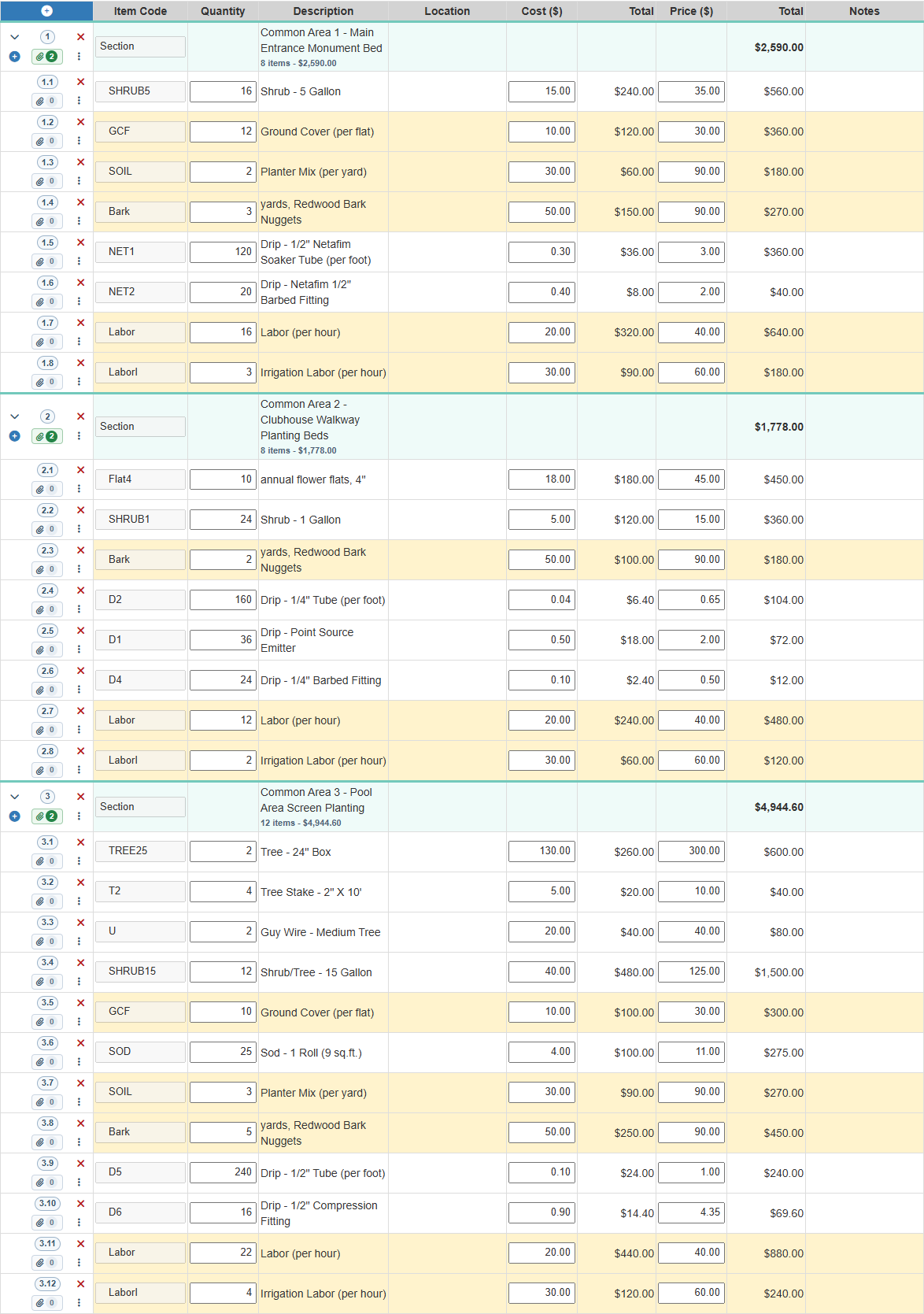
In the demonstration image, the main entrance bed has 16 five-gallon shrubs and three yards of bark recorded as used. The office can expand that work area, review the quantities and descriptions, and compare them with the approved estimate. If the quantities differ, the next step is an explanation and any required approval, not an automatic extra charge. If an item or work detail is missing, send the question back while the crew can still explain it.
If re-entering reviewed work into accounting is the next problem to solve, evaluate the connection separately. It adds customer/item setup and transfer checks; it does not remove the operational review above. For a QuickBooks Desktop walkthrough, follow a reviewed job through the remaining office steps:
- Confirm the integration and required customer/item synchronization are configured. Agree who maintains those records and how the office checks a mismatch.
- After the operational review, use the Ready to Invoice status to identify work eligible for the company's billing review. In the Work Orders list, select the intended records and choose Queue Invoices from the Invoice menu, then confirm the queue action.
- The queued work waits for the configured Web Connector process. After it runs, check the sync results and confirm the resulting invoice in QuickBooks before continuing the accounting process. Follow up on an incomplete transfer before treating the work as invoiced.
Ask the provider to demonstrate the final accounting result with a representative job and your configuration. QuickBooks Online has its own setup and transfer workflow; do not assume the Desktop steps or timing apply to it.
The useful result is a job the office can review from its recorded work and quantities, then pass through the configured accounting handoff. The field entry supplies the detail; synchronization and the invoice queue carry supported information forward. Compare this with collecting a paper material sheet, finding a completion text and re-entering the same details. Keep only the checks and entries your actual accounting setup still requires. The office owns pricing, scope and billing decisions and confirms the resulting invoice.
Explore Billable Extras for the operational workflow, or QuickBooks integration detail for the accounting handoff. Book a Live Walkthrough with a representative job and your accounting setup.